AIDA64 Extreme
Industry-leading system info and diagnostics for PC enthusiasts. Benchmarks, stress testing, SensorPanel.
Jetzt testen →30 Jahre zuverlässige PC-Überwachung
Seit drei Jahrzehnten ist AIDA64 Ihr zuverlässiger Partner. Präzise Hardware-Erkennung, Stresstests, SensorPanel-Überwachung und Benchmarks für Enthusiasten und IT-Profis weltweit.
30+
Jahre Entwicklung
250.000+
Hardware-Datenbankeinträge
50+
Unterstützte LCD/VFD-Displays
40+
Sprachen
Verschiedene Editionen für verschiedene Anforderungen — vom Heimanwender bis zum Unternehmens-Netzwerkaudit.
Industry-leading system info and diagnostics for PC enthusiasts. Benchmarks, stress testing, SensorPanel.
Jetzt testen →
For IT technicians. Detailed hardware/software info, diagnostics and benchmarks for workstations and servers.
Jetzt testen →
PC fleet inventory, remote control, SQL database support. Essential for companies and IT decision-making.
Jetzt testen →
Automated network audit and change tracking. Hardware and software inventory across the company.
Jetzt testen →Accurate hardware detection, real-time monitoring and professional-grade diagnostics.
Over 50 pages of hardware configuration and 50+ pages of installed programs, licenses and Windows settings.

64-bit CPU, memory, cache, disk and GPGPU benchmarks. System Stability Test drives your PC to the limit.

250+ sensor devices. Create custom panels with gauges and graphs. OSD, Desktop Gadget, LCD support.
Most accurate hardware detection in its class. Exhaustive database. No need to open the case.
Display system data on 50+ LCD/VFD devices. Wireless remote monitoring on smartphones and tablets.
SMART disk health, monitor diagnostics. Detect and prevent hardware issues before they cause downtime.
Real experiences, troubleshooting wins and tips from the community.
"Used AIDA64 for years. The SensorPanel alone is worth it — I built a custom overlay that matches my rig. Stress test caught a failing PSU before it died."
"We use AIDA64 Business for fleet inventory. Remote reporting and SQL output saved us countless hours. Support was helpful when we hit a firewall issue."
"Fixed my Corsair iCUE stuttering by disabling AIO monitoring in AIDA64 preferences. FAQ had the exact steps. Problem solved in 2 minutes."
AIDA64 is a comprehensive system information, diagnostics, and benchmarking suite for Windows. It identifies hardware and software, runs stress tests, monitors sensors in real time, and produces detailed reports used by PC enthusiasts, IT technicians, and enterprises worldwide.
Over 50 pages of hardware details (CPU, motherboard, memory, storage, GPU, network) and 50+ pages of software, licenses, and Windows configuration. No need to open the case.
CPU, memory, cache, disk, and GPGPU benchmarks. System Stability Test to stress the entire PC. Monitor diagnostics and SMART disk health to catch issues early.
SensorPanel, OSD, Desktop Gadget, and support for 50+ external LCD/VFD displays. Export to HTML, CSV, XML, or SQL for audits and documentation.
AIDA64 has evolved from the early 1990s through every major shift in PC technology: from dial-up to 5G, from 8-bit to 8K, from single-core to multi-core and beyond. FinalWire Ltd. continues to update the hardware database (250,000+ entries) and add support for new CPUs, GPUs, motherboards, and sensors with each release.
Different editions serve different audiences. Here is how typical users choose.
Use AIDA64 Extreme for system info, overclock validation, stress testing, and custom SensorPanel overlays. Check temps and voltages while gaming or benchmarking.
Use AIDA64 Engineer for workstations and servers. Command-line reporting, CSV/XML/SQL output, and detailed hardware analysis without network audit or remote features.
Use AIDA64 Network Audit for automated inventory. Run from a share via logon script; collect hardware and software data across the fleet without installing on each PC.
Use AIDA64 Business for full inventory, remote control, remote monitoring, SQL database integration, and change tracking. Reduce IT costs and support decision-making.
Generate a full hardware and software report to document exact specs, serial numbers, and OS version. Useful for listings, insurance, or handover documentation.
Run the System Stability Test and monitor temperatures and voltages via SensorPanel. Compare benchmark scores before and after tuning CPU, RAM, or GPU.
Stress test individual components (CPU, RAM, disk, GPU) to isolate failures. Check SMART data for drives and review sensor readings for overheating or bad power delivery.
Deploy AIDA64 Business or Network Audit via logon script. Collect hardware and software data to a central share or SQL database. Track changes over time.
With AIDA64 Business, connect to remote PCs to view system info and sensors without visiting the desk. Useful for distributed teams and server monitoring.
Build a SensorPanel with gauges and graphs, or output to external LCD/VFD devices. Display temps, fan speeds, and usage on a second screen or dedicated panel.
Quick steps to try AIDA64 and get the most out of it.
AIDA64 runs on 64-bit Windows. No heavy GPU or CPU requirements for the application itself.
For legacy 32-bit Windows support, check the legacy compatibility page.
Use /SAFE for network audit — If some PCs hang or crash during audit, run with the /SAFE command-line option to disable low-level access and improve compatibility.
Disable Corsair sensors if you use iCUE — To avoid stuttering or freezes, turn off Corsair Hydro Platinum and Corsair Link in Preferences → Stability.
Run as Administrator for activation — When entering a license key, run AIDA64 as Administrator so it can write the pkey.txt file, or use the portable version.
Export reports to SQL — Business and Network Audit can write directly to SQL. Use this for centralised reporting and dashboards.
Watch temps during stress test — Keep an eye on CPU and GPU temperatures. If they exceed safe limits, improve cooling or reduce overclock.
Check the FAQ — Many common issues (remote connection, sensors, activation) are covered in the official Guides & FAQ and on the official site.
What enthusiasts and professionals say about AIDA64.
"The only tool I use for hardware IDs and driver research. Invaluable."
"SensorPanel on a small LCD next to my desk. Looks professional and keeps an eye on the server."
"We replaced three different tools with AIDA64 Business. One report, one place, SQL integration."
"Stability test found a bad RAM stick in 10 minutes. Saved hours of guesswork."
Quick answers about AIDA64 editions, trials, and usage.
AIDA64 includes multiple benchmark and stress modules to measure performance and stability.
Queen, SHA3, AES, VP8, and single-thread benchmarks. Cache and memory bandwidth tests help compare processors and validate overclocks.
Read, write, copy, and latency benchmarks for system RAM. Useful for tuning memory speed and timings and comparing kits.
Sequential and random read/write tests for SSDs and HDDs. Measures throughput and IOPS for storage comparison.
OpenCL and other GPGPU benchmarks to stress and measure GPU compute performance alongside graphics.
Stresses CPU, memory, disk, and optionally GPU at the same time. Run for 30–60 minutes or more to validate overclocks and cooling.
Built-in monitor diagnostics (LCD tests) and SMART disk health reading. Detect failing drives or display issues early.
DMI / SMBIOS
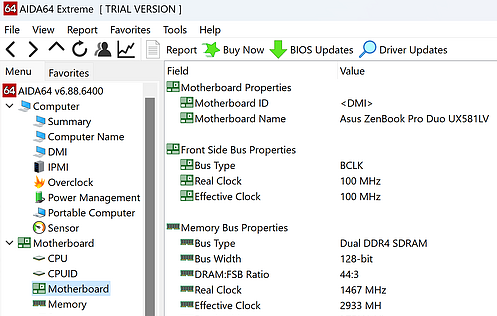
Standard tables in motherboard firmware that describe hardware (manufacturer, model, serial numbers). AIDA64 reads these for the Computer and Motherboard pages.
SMART
Self-Monitoring, Analysis and Reporting Technology for storage drives. AIDA64 can read SMART attributes to warn of potential drive failure (e.g. reallocated sectors).
SensorPanel
Custom panel builder that displays live sensor data (temperatures, voltages, fan speeds) using gauges, graphs, and text. Can be shown on-screen or on external LCD/VFD devices.
TJMax
Maximum junction temperature for Intel CPUs. Core temperatures are reported relative to TJMax. You can adjust TJMax in AIDA64 Preferences to align with other monitoring tools.
AIDA64 can export system information and audit data in several formats for documentation and automation.
Command-line options such as /R, /AUDIT, /CSV, /XML are available in Engineer, Business, and Network Audit for scripted and scheduled reports.
Stay connected to your PC or fleet from anywhere.
Free apps that connect to AIDA64 on your Windows PC over the local network or internet. View sensors, benchmarks, and system info on your phone or tablet. Optional in-app purchases unlock extra features and remove ads.
Ideal for checking temperatures and usage while away from the desk or when the PC is in another room.
AIDA64 Business supports remote connection to other PCs running AIDA64. View their system information and sensor data without being at the machine. Useful for server rooms, distributed teams, and remote support.
Combine with network audit and SQL reporting for a complete fleet monitoring solution.
The hardware database includes hundreds of thousands of entries and is updated with every release.
CPUs
Intel, AMD, detection of cores, cache, features
Motherboards
Chipset, BIOS, form factor, serials
Memory
Modules, speed, timings, ECC
Storage
SSDs, HDDs, NVMe, SMART, RAID
GPUs
NVIDIA, AMD, Intel, vendor, driver
Displays
Monitor model, resolution, EDID
Sensors
Temp, voltage, fan, power (250+ types)
Software
Installed programs, Windows, licenses
From reviewers to enterprises, AIDA64 is used where accuracy and reliability matter.
Hardware review sites and YouTube channels use AIDA64 for CPU, memory, and system benchmarks. Results are comparable and repeatable.
Reviewers & media
Overclockers rely on stress tests and sensor monitoring to validate stability and temperatures. SensorPanel and OSD are popular for real-time display.
Overclockers & builders
IT departments use Business and Network Audit for asset inventory, change tracking, and remote monitoring. SQL and CSV output integrate with existing tools.
IT & enterprises
The 30-day trial gives you full access to all features. After that, a license unlocks continued use and ongoing updates.
Check your license status at License Checker and renew maintenance here.
"We run AIDA64 Network Audit on 400+ PCs. The CSV goes into our asset DB. Zero complaints, runs from the logon script."
"SensorPanel on a 5-inch LCD in my case. Looks insane and I always see temps. Worth every penny."
"Stability test revealed a weak PSU under load. Replaced it before it took out the motherboard. AIDA64 paid for itself."
Ways to use the built-in panel builder for monitoring.
On-screen overlay
Floating panel with CPU/GPU temp and usage while gaming or working.
External LCD
5" or 7" display in the case showing temps, fans, and clocks.
Second monitor
Dedicated dashboard on a side screen for streaming or work.
Server rack
Small panel next to servers for at-a-glance health checks.
Quick guidelines for best results.
AIDA64 is available in 40+ languages. The interface, reports, and help can be localised. Stable and beta builds are published on the official site for all Windows editions. Mobile apps (Android, iOS) are available from the respective app stores and connect to the Windows version over the network.
For the full list of languages and download links, visit the downloads page.
Where to find help and documentation.
Quick comparison to choose the right product.
| Feature | Extreme | Engineer | Network Audit | Business |
|---|---|---|---|---|
| Diagnostics & benchmarks | ✓ | ✓ | — | ✓ |
| SensorPanel | ✓ | ✓ | — | ✓ |
| Command-line / CSV/XML/SQL | — | ✓ | ✓ | ✓ |
| Network audit (fleet) | — | — | ✓ | ✓ |
| Remote control / monitoring | — | — | — | ✓ |
| Commercial use | — | ✓ | ✓ | ✓ |
Recommendations for the System Stability Test.
AIDA64 runs locally on your PC. System information and sensor data stay on your machine unless you explicitly export reports or use remote features (e.g. Business remote monitoring). No telemetry or automatic data upload is required for core functionality. For details, see the official Privacy Policy.
"Benchmark database is huge. Every time I get new hardware, AIDA64 already knows it."
"We use Business for 200 machines. SQL output goes straight into our CMDB."
"SensorPanel on an old tablet as a dashboard. Brilliant."
Get the trial from the download page. Install or extract the portable ZIP.
Browse system info and sensors, then run CPU or memory benchmark.
Generate a report or build a custom monitoring panel.
AIDA64 supports 64-bit Windows. 32-bit is not supported in recent versions.
Use Quick Report for a fast HTML summary to send to support.
Disable Corsair sensors in Preferences if iCUE causes stuttering.
Run stress test with GPU checked to load both CPU and graphics.
Export SensorPanel layout to backup your custom design.
Use /SAFE in network audit if some PCs hang during detection.
Check SMART before buying a used drive; AIDA64 can read it.
FinalWire releases stable and beta builds regularly. Updates add support for new CPUs, GPUs, motherboards, and sensors, plus bug fixes and benchmark tweaks. With an active maintenance plan you can download the latest version from the official site. Check the downloads page and the release notes for each build.
You can run AIDA64 from a folder without installing.
Extract and run from any writable folder. No registry entries. Ideal for USB stick or shared network location. License file must be in the same folder. Some features (e.g. driver installation for certain sensors) may require running once with admin rights.
Standard installer adds shortcuts and optional Start Menu entry. Easiest for activation (run as Administrator when entering the key). Updates can be installed over the existing folder. Use Uninstall from Windows Settings to remove.
Compare all AIDA64 versions and find the one that best suits your needs — home, IT technician, or enterprise.
Compare Products